🚀 Getting Started
How to get started with the pobsonGames feedback hub and bug reporting module.
Last updated 4 months ago
Click here to watch the video how-to guide.
1. Create An Account
To unlock most features, such as voting posts and subscribing to updates, you’ll need a Featurebase account. Click ‘Sign In/Sign Up’ in the top-right corner to create one.
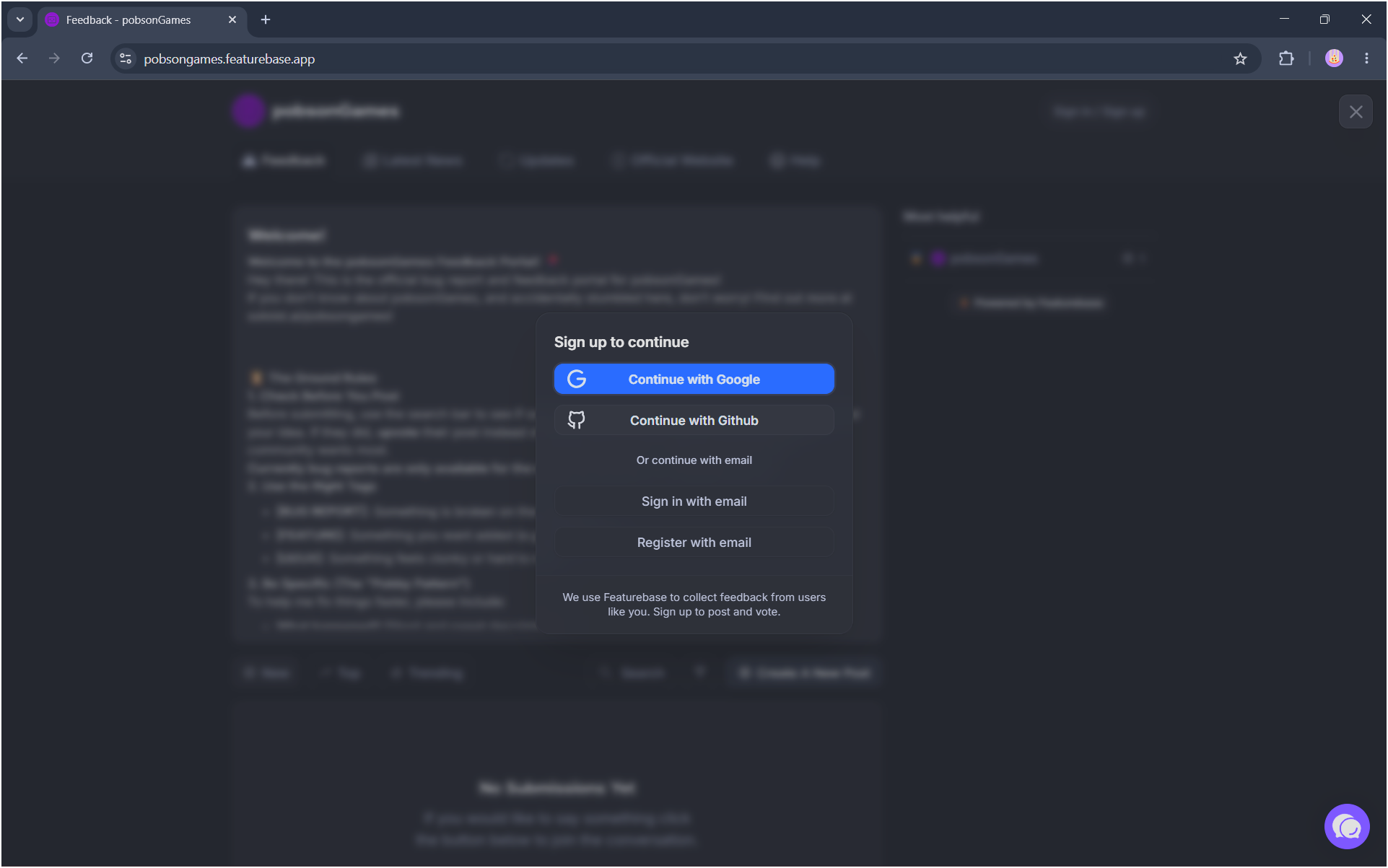
If you already have an existing Featurebase account, click ‘Sign in with email’. Otherwise, click ‘Register with email’.
Follow the on-screen instructions to create or sign into your Featurebase account.
Tip: You can use your Google account or GitHub account to sign in, saving you having to juggle another password!
2. Make Your First Post
Now you have your account signed into, go to pobsongames.featurebase.app and click the ‘+ Create A New Post…’ button.
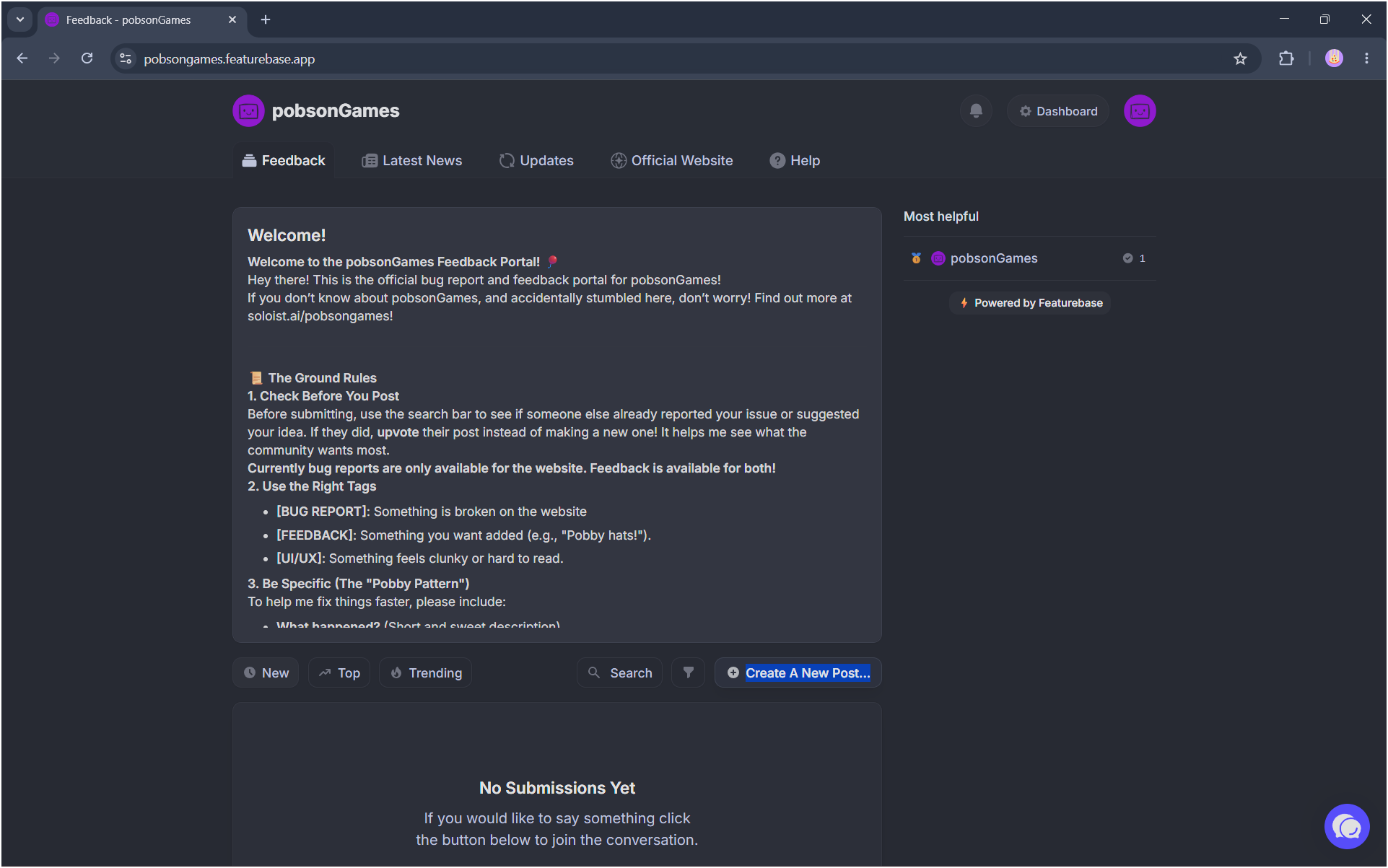
In the title entry, remember to say if your post is a [BUG REPORT] or [FEEDBACK]. Enter one of them exactly first thing in your title.
3. Describe, describe, describe…
When submitting a bug report, make sure to include a good title starting with [BUG REPORT], a brief summary, the observed result, and an expected outcome. Once you submit a post, it will automatically be upvoted by you.
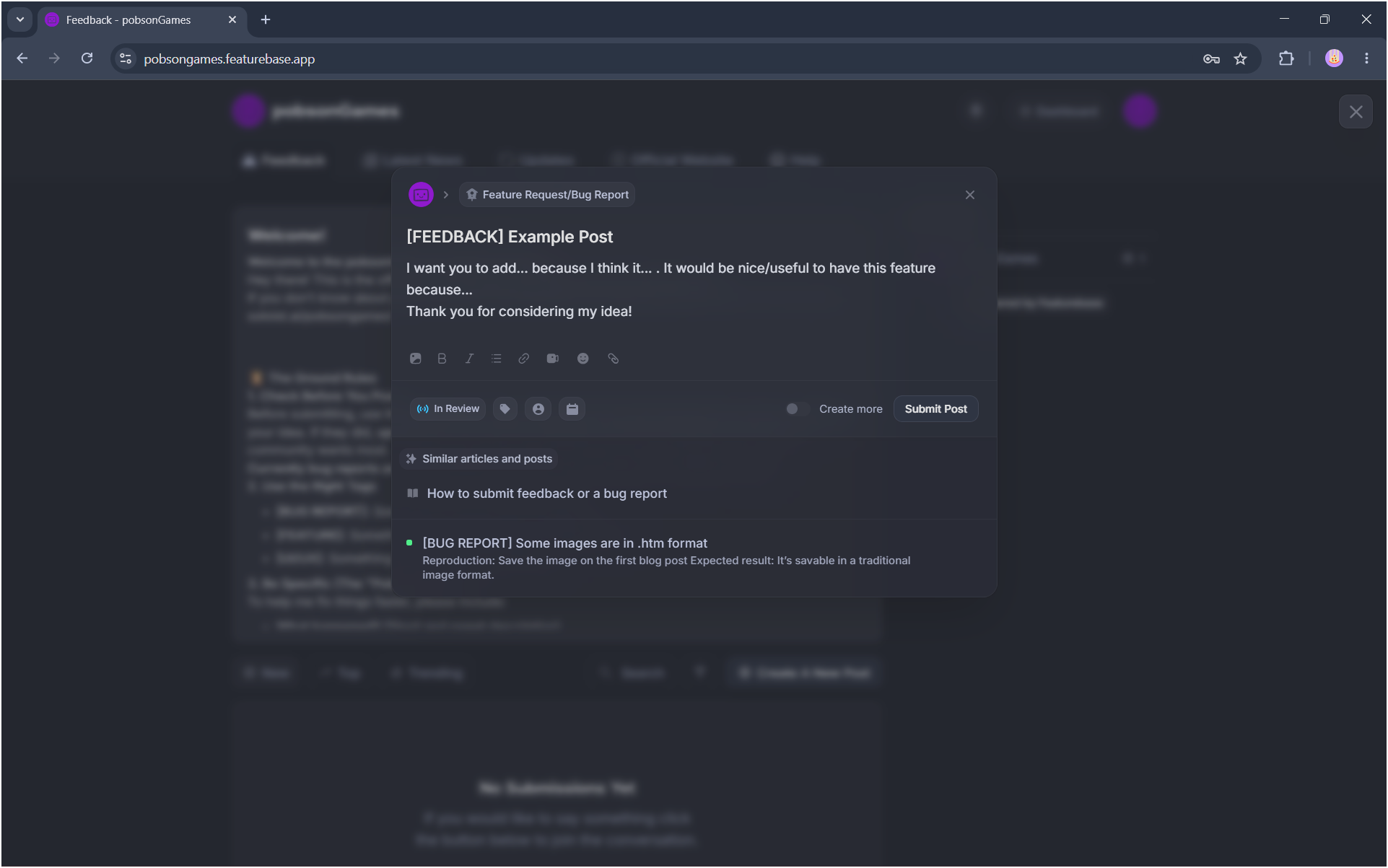
If you’re submitting feedback, include these:
What happened? (Short and sweet description).
How to make it happen. (e.g., “1. Go to the website. 2. Scroll down, etc…”)
What device and browser are you on? (PC specs and OS, mobile device and OS, or browser and version).
If it’s a bug report, is it an issue with the website or feedback hub?
4. Wait for it to be noticed
If pobsonGames changes the status of the post, you’ve been noticed! You’ll get an email whenever this happens, or if someone comments on the post, replies to a comment, upvotes the post, or downvotes the post.
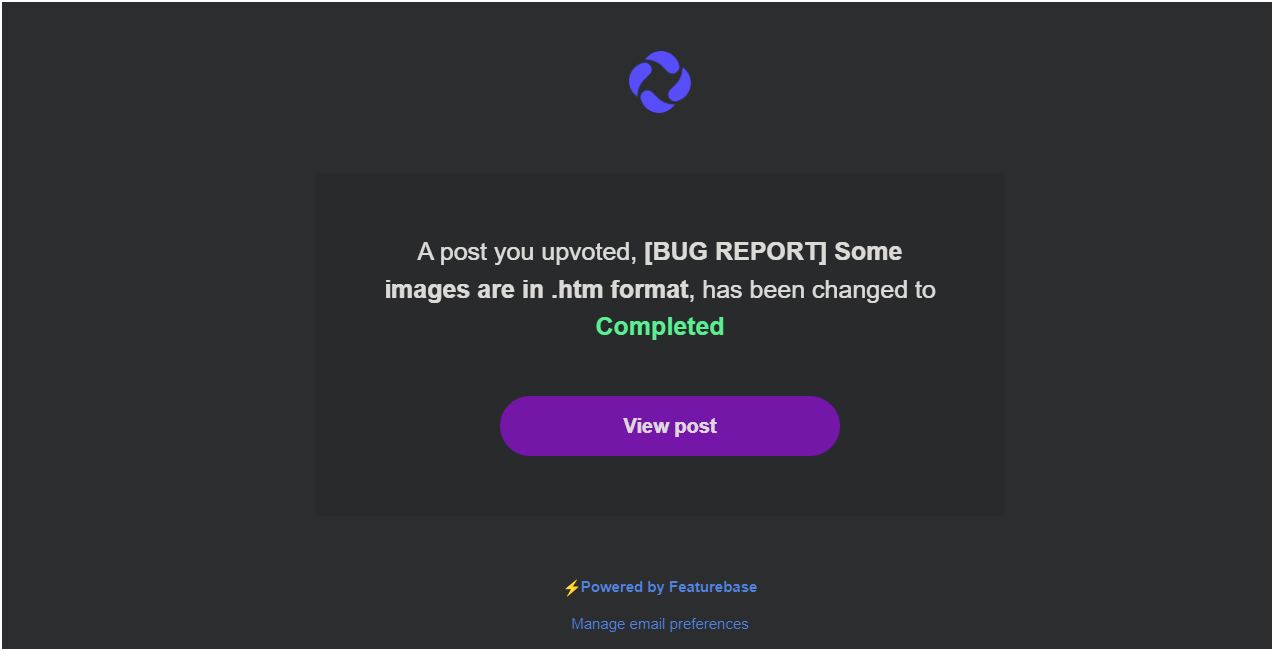
If you don’t want to get emails whenever something minimal changes on your post (it can get annoying, honestly!), then just un-upvote the post, by simply going to your post, and clicking the small up-arrow on the right-hand side of the popup.
But if you still want to know about changes but don’t want constant buzzing on your phone whilst having a friendly chat with a neighbor or watching TV, you can follow your email client’s instructions on how to disable notifications for their respective email app: Gmail Instructions, Outlook Instructions, Proton Mail Instructions and Yahoo Mail Instructions.